
Sign in with Flowsta
Add "Sign in with Flowsta" to your application and let users sign in with their Flowsta identity.
Sign in with Flowsta works like "Login with Google" or "Sign in with Apple" from your side of the integration: standard OAuth 2.0 with PKCE, a pre-built button, and a /oauth/userinfo endpoint. The difference is what happens on Flowsta's side - there is no one in between. A Flowsta identity lives on the user's own device, secured by a 24-word recovery phrase and the Flowsta Vault app. The user approves every sign-in with keys only they hold.
How Flowsta Identities Work
- Device-hosted identity - the user's identity is a keypair on their device, backed by a 24-word recovery phrase. Flowsta never holds the keys.
- No password to phish - the login page has no password field. When a user signs in on
login.flowsta.com, their Flowsta Vault signs a one-time challenge to prove they hold their keys. - Standard OAuth for you - your app never touches any of this. You implement ordinary OAuth 2.0 Authorization Code + PKCE; Flowsta handles the Vault interaction on its login page.
- The Vault decides who is signing in - on a computer, a remembered browser session is only reused when it belongs to the identity the Vault holds right now. If the Vault holds a different identity, the sign-in runs again as that identity; if the Vault is locked or closed, the user unlocks or opens it first. On phones, and in browsers that cannot reach a Vault, the remembered session stands.
Why Sign in with Flowsta?
For Your Users
- One identity, everywhere - sign in across all Flowsta partner sites
- Keys only they hold - no password to phish, no credential database to breach
- Every sign-in approved - the user's own Vault signs each login challenge
- W3C DIDs - self-sovereign, portable identity
For Developers
- Quick integration - add a button, configure OAuth, done
- Standard OAuth 2.0 - industry-standard protocol with PKCE
- Multiple frameworks - React, Vue, Qwik, Vanilla JS support
- Beautiful UI - pre-built login buttons and hosted auth pages
- Free tier - get started without a credit card
How It Works
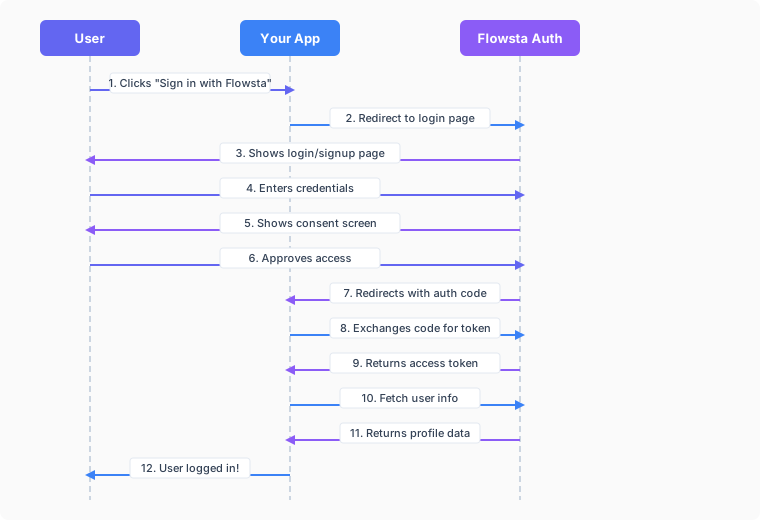
OAuth 2.0 Flow
Sign in with Flowsta implements the OAuth 2.0 Authorization Code Flow with PKCE:
- User clicks "Sign in with Flowsta" button
- Your app redirects to
login.flowsta.com(a full-page redirect) - User approves the sign-in with their Flowsta Vault (or creates an identity in the Vault first)
- User grants consent for the scopes you requested
- Flowsta redirects back to your redirect URI with an authorization code
- Your app exchanges the code for an access token
- Your app fetches user profile data from
/oauth/userinfo - User is logged in to your application
Features
Security
- OAuth 2.0 with PKCE - protection against authorization code interception
- Refresh tokens - long-lived sessions (30 days)
- Token revocation - refresh tokens can be revoked at any time; access tokens expire within 24 hours
- Rate limiting - on the token endpoint (30 requests per minute per IP and client ID)
- Activity log - OAuth events per app in your developer dashboard, privacy-preserving (no IP addresses, user agents, or user IDs are stored)
Email Stays With the User
Flowsta identities are device-hosted, and the server keeps only a hash of the user's email - Flowsta has no email database to hand out.
- The
emailscope means asking the user to share their address. On a computer the address comes from the user's Flowsta Vault, which shows its own "share your email" dialog; nothing is typed. On phones and browsers that cannot reach a Vault the user types it at the consent screen and Flowsta verifies it against the hash it holds before accepting it. - Once shared,
/oauth/userinforeturnsemailandemail_verifiedfor your app only. Only verified addresses can be shared, so the claim is trustworthy. - The shared copy is held per-app for delivery and deleted when the user revokes your app from their dashboard - design for the possibility that it goes away.
Customization
- Pre-built buttons - responsive designs (light/dark/neutral)
- Hosted pages - professional login and consent screens
- Custom scopes - request only what you need
Available Scopes
Flowsta uses granular scopes so users only consent to the specific data your app needs:
| Scope | Description | User Data |
|---|---|---|
openid | User identifier (auto-included) | sub (stable user UUID) |
display_name | Display name | name |
username | Username | preferred_username |
email | Email address | email, email_verified - only after the user explicitly shares it at consent (verified addresses only; revocable) |
profile_picture | Profile picture | profile_picture, has_custom_picture |
did | Decentralized ID | did (W3C DID) |
public_key | Public key | agent_pub_key (Holochain) |
holochain | Holochain identity access | agent_pub_key and did in /userinfo |
sign | Sign It signing | Gates Sign It signing endpoints (no extra /userinfo fields) |
verify | Sign It verification | Gates Sign It verification endpoints (no extra /userinfo fields) |
Request Only What You Need
Instead of requesting all profile data, choose only the scopes your app actually needs. This builds user trust and simplifies the consent screen.
Email Is a Gift, Not a Given
The email scope asks the user to share their address at the consent screen - they can decline by denying, and they can revoke it later (which deletes Flowsta's shared copy). Design your app to work without an email, and treat one you receive as revocable.
Quick Start
Get Sign in with Flowsta running in 5 minutes:
1. Register on dev.flowsta.com
- Go to dev.flowsta.com
- Sign in with your Flowsta identity
- Click Create New App - the three steps are app details, Permissions (scopes), and Redirect URIs
2. Configure OAuth Settings
In the create steps (or later, on the app's page, via Edit Settings and Save Settings):
Add redirect URIs (where users return after login)
https://yourapp.com/auth/callbackSelect the scopes your app needs
openid(auto-included, returns user ID)display_name,username,profile_picture(profile data)did,public_key(technical identifiers)email(asks the user to share their address at consent)
A scope that is not ticked here cannot be requested -
/oauth/authorizeanswersinvalid_scope.
3. Install the Button Widget
npm install @flowsta/login-button4. Add the Button
The button performs a full-page redirect to login.flowsta.com. There is no success callback in your app - the authorization code arrives at your redirect URI on a fresh page load, and you handle it there (step 5).
import { FlowstaLoginButton } from '@flowsta/login-button/react';

function App() {
  return (
    <FlowstaLoginButton
      clientId="your_client_id"
      redirectUri="https://yourapp.com/auth/callback"
      scopes={['openid', 'display_name']}
      variant="dark-pill"
      onError={(error) => console.error('Could not start login:', error)}
    />
  );
}<script setup>
import { FlowstaLoginButton } from '@flowsta/login-button/vue';
const handleError = (error) => {
console.error('Could not start login:', error);
};
</script>
<template>
<FlowstaLoginButton
client-id="your_client_id"
redirect-uri="https://yourapp.com/auth/callback"
:scopes="['openid', 'display_name']"
variant="dark-pill"
@error="handleError"
/>
</template>import { FlowstaLoginButton } from '@flowsta/login-button/qwik';
import { $, component$ } from '@builder.io/qwik';
export default component$(() => {
const handleError = $((error: any) => {
console.error('Could not start login:', error);
});
return (
<FlowstaLoginButton
clientId="your_client_id"
redirectUri="https://yourapp.com/auth/callback"
scopes={['openid', 'display_name']}
variant="dark-pill"
onError$={handleError}
/>
);
});<div id="flowsta-login"></div>
<script type="module">
import { initFlowstaLoginButton } from '@flowsta/login-button/vanilla';
initFlowstaLoginButton('#flowsta-login', {
clientId: 'your_client_id',
redirectUri: 'https://yourapp.com/auth/callback',
scopes: ['openid', 'display_name'],
variant: 'dark-pill',
onError: (error) => console.error('Could not start login:', error),
});
</script>5. Handle the Callback
After the user approves the sign-in, Flowsta redirects to your redirect URI with ?code=...&state=.... On that page, validate the state, retrieve the PKCE verifier the button stored, and exchange the code for tokens:
// On your redirect URI page (e.g. /auth/callback)
import {
  handleCallback,
  validateState,
  retrieveCodeVerifier,
} from '@flowsta/login-button';

const { code, state, error, errorDescription } = handleCallback();

if (error) throw new Error(errorDescription || error);
if (!state || !validateState(state)) throw new Error('State mismatch');

const codeVerifier = retrieveCodeVerifier(state);

// Exchange code for tokens (PKCE - no client secret needed!)
const response = await fetch('https://auth-api.flowsta.com/oauth/token', {
  method: 'POST',
  headers: {
    'Content-Type': 'application/json',
  },
  body: JSON.stringify({
    grant_type: 'authorization_code',
    code,
    redirect_uri: 'https://yourapp.com/auth/callback',
    client_id: 'your_client_id',
    code_verifier: codeVerifier,
  }),
});

const { access_token, refresh_token } = await response.json();No Client Secret Required
With PKCE, you don't need a client secret for browser or mobile apps. The code_verifier proves you initiated the request.
6. Fetch User Data
const userResponse = await fetch('https://auth-api.flowsta.com/oauth/userinfo', {
  headers: {
    'Authorization': `Bearer ${access_token}`,
  },
});

const user = await userResponse.json();
// { sub, name, preferred_username, did, agent_pub_key, profile_picture, has_custom_picture }
// email and email_verified appear only if the email scope was requested
// and the user shared an address at the consent screen.That's it! Your users can now sign in with Flowsta.
Next Steps
- Quickstart Guide - Detailed step-by-step tutorial
- Button Widget - Customize the login button
- API Reference - Complete OAuth endpoints
- Security - Best practices and security guide
- Holochain Integration - Sign Holochain actions with Flowsta
Need Help?
- 💬 Discord: Join our community
- 🆘 Support: Find out about Flowsta support options
- 🐙 GitHub: github.com/WeAreFlowsta