
Flowsta Vault
The home of every Flowsta identity. Every sign-in, every link and every signature is approved here, on the user's own device.
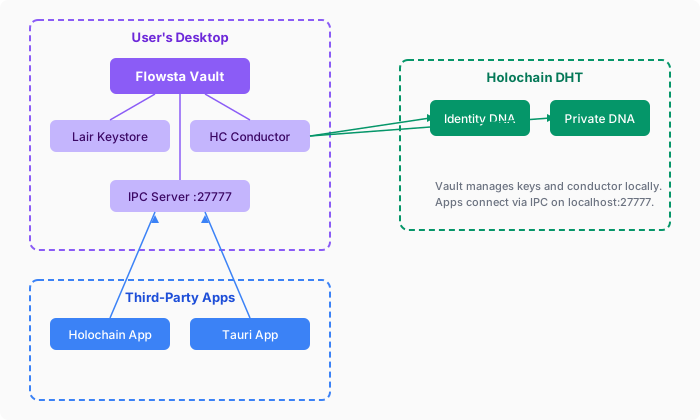
Flowsta Vault is the desktop app (Windows, macOS, Linux) where a Flowsta identity is created and where it lives. It holds the person's keys, their private data and their app backups, and it is where they say yes or no to anything done in their name. Flowsta's servers hold no password and no keys for a Vault identity, so nothing can be approved anywhere else.
Everything in these docs is a way of asking the Vault for something. A web app asks it to sign the person in. A Holochain app asks it to vouch for the app's agent. Any app can ask it to sign a file. The person answers, and the answer is a signature made with keys that never leave their computer.
Every path goes through the Vault
| You are building | What your app does | What the person does in their Vault |
|---|---|---|
| A website or web app | A standard OAuth 2.0 redirect to Flowsta's login page. Nothing to install, nothing Vault-specific to write. | Approves the sign-in. The login page reaches the Vault on the same computer. Where it cannot, such as Safari, Brave or a phone, the page shows a short code: a link hands it to the Vault on the same computer, or the person types it into their Vault from another device. |
| A Holochain app | Asks the Vault to link the app's agent to the person's identity, then commits the attestation to its own DHT. | Approves the link and chooses what the app may see. |
| A desktop app | Asks the Vault to sign a nonce over the local bridge; your backend verifies it. | Approves the sign-in. |
| Anything that signs files | Sends a file's hash, never the file. | Approves each signature. A linked app's signature is published to the Sign It network from the person's own device. |
Web apps · Holochain apps · Desktop apps · Sign It
What the Vault holds
| In the Vault | What it is |
|---|---|
| Identities | One Vault can hold several identities on one computer, such as a personal one and a work one. One is open at a time; the person chooses which when they unlock. See Identity switching. |
| Keys | A 24-word recovery phrase deterministically derives the identity's Ed25519 keys. The same phrase, or a code from a device the person already has, brings the identity to another device. Each device also has a key of its own. A Vault password protects everything stored on this device, and never leaves it. |
| Devices | From 1.6.0 one identity lives on several devices, each a full Vault for it. Settings → Devices adds and removes them; the private data, connections and app backups follow the identity. See Several devices. |
| Overview | The person's public profile as others see it: picture, name, username and the link to their page, editable in place. |
| Sign It | Sign any file, one or many, with integrity checks and content rights. Signatures are verifiable by anyone. |
| Connections | Every app and site the person has linked or signed in to, with what each may see. They can disconnect any of them here. |
| Your Data | Encrypted backups from connected apps, and Export Data: a readable copy of the person's data together with the keys needed to use it. |
| Activity | A record of every sign-in, link, email shared and setting changed. Kept on the device only. |
| A personal network node | While unlocked, the Vault runs the person's own node on Flowsta's network: the public Identity and Signing records, and an encrypted Private store that syncs only between the person's own devices. |
How an approval works
Websites and apps reach the Vault through a local bridge on 127.0.0.1, port 27777 (or 27778 / 27779 when that one is taken). The SDKs find it for you.
- Sign-ins, links and signatures always show a dialog naming the app, where the request came from, and what is being asked. The person allows or declines, and a declined request returns
user_denied. - A remembered site can be signed in to again without a new dialog. The person chooses this per site and can forget it at any time.
- A locked Vault waits for a Flowsta sign-in. A request from Flowsta's login page is held while the person unlocks, then the dialog appears. An app's own request to a locked Vault returns
vault_locked, and the app asks the person to unlock. - The Vault answers only its own computer account. On a shared computer, each account's browsers and apps reach that account's own Vault.
- The email address is shared only from the Vault. When an app asks for it, the dialog shows the address that will be shared, and only a verified address is ever offered.
The exact routes, fields and error codes are in the IPC reference.
Setting up a Vault
Creating an identity takes three steps:
- Your details - email, display name and a Vault password.
- Recovery phrase - the Vault generates the 24 words; the person writes them down. The phrase is one of the two ways to bring the identity to another device.
- Ready - the Vault starts the person's node and joins the network.
Two other paths start on the same screen: I already have an identity - on another device (a code) or by recovery phrase, see Several devices - and move an identity created on flowsta.com before July 2026 into the Vault.
Requirements: Windows 10 or 11 (64-bit), macOS 12 or later, or Linux (.deb and .rpm). Download at flowsta.com/vault.
What your app can ask the Vault for
Beyond approval, a linked app gets a set of services it would otherwise build itself. All of them go through @flowsta/holochain, which is the Vault's client for any desktop app, with or without Holochain.
| You want | The Vault provides | Guide |
|---|---|---|
| The person's profile | Display name, picture and username, scope-gated by the person at link time. No signup form, no avatar upload. | getVaultStatus() |
| An identity link on your DHT | A signed attestation that your app's agent and the person's Flowsta identity are the same person. | Build a Holochain app |
| Backups and reinstall recovery | Encrypted storage for your app's data in the person's own Vault, and a restore on a new machine. | Backups |
| The CAL data export | Export Data produces the person's records and keys in readable JSON - the export a CAL-licensed app must provide. You write a small decoder per entry type. | CAL compliance |
| Document signing | A signature over a file hash, published to the Sign It network for a linked app. | Sign It developer guide |
| Private data on a public DHT | A pattern for entries only their author can read, with peers carrying the ciphertext. | Encrypted entries |
| Support for several identities | The status fields and rules for an app when the person switches identity. | Identity switching |
| The person's other devices | Backups read across the person's devices (across: "devices"), and what an app sees when the identity is on several. | Several devices |
Next steps
- Start here - pick your path
- Security & Privacy - what the server holds, what the Vault sends home, how data leaves with the person
- Identity switching - several identities in one Vault
- Several devices - one identity on several devices
- IPC reference - every route on the local bridge