

Desktop App Authentication
Identity for desktop apps through Flowsta Vault - your app never touches a credential.
Desktop apps (Tauri, Electron, or anything that can reach localhost) talk to the user's Flowsta Vault over local IPC on 127.0.0.1, ports 27777-27779 (the Vault takes the next port up when 27777 is held; the SDK resolves it for you - pass ipcUrl to pin it). The user sets up and unlocks their Vault in the Vault app itself - your app only ever observes Vault state and asks it to sign things. Your app never sees a password; the user's Vault key signs for them.
How It Works
Unlike web OAuth, there's no browser redirect. Your app calls the Vault's local IPC; the Vault shows the user exactly what your app is asking for and signs with keys that never leave the device.
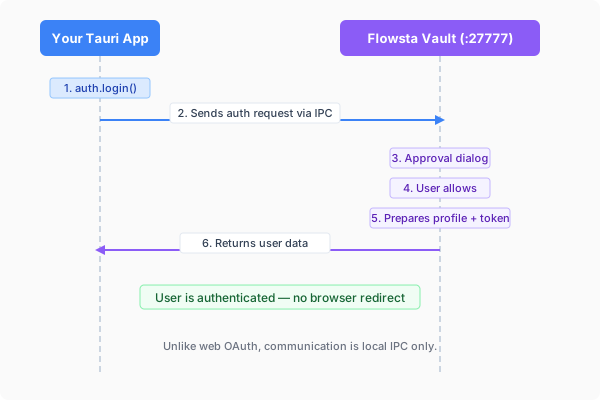
Your app ──local IPC──▶ Flowsta Vault ──signature──▶ your app
(user approves in Vault UI)::: caution Native (non-webview) IPC clients If your app calls the Vault from native code (Rust reqwest, Go, Python, …) instead of a webview, you must send an Origin header manually on every request - browsers add it automatically, native HTTP clients don't. See the Origin-header caution in the IPC reference. :::
Quick Start
1. Install the SDK
npm install @flowsta/holochain2. Check Vault Status
import { getVaultStatus } from '@flowsta/holochain';

const status = await getVaultStatus();
if (status.blocked) {
  showMessage('Your browser blocked access to Flowsta Vault - allow local network access');
  return;
}
if (!status.running) {
  showMessage('Please install and open Flowsta Vault');
  return;
}
if (!status.unlocked) {
  showMessage('Please unlock Flowsta Vault to continue');
  return;
}

console.log('Permanent ID:', status.did);          // did:flowsta:… (SDK 3.6.0)
console.log('Agent key:', status.agentPubKey);
console.log('Identity held:', status.activeIdentity); // also reported while locked (Vault 1.5.0, SDK 3.5.0)
// After the user has linked your app, and with the display_name /
// profile_picture / username scopes selected at dev.flowsta.com:
console.log('Name:', status.displayName);The user unlocks the Vault in the Vault's own window - never in yours. status.activeIdentity names the identity the Vault holds even while locked, status.identityEpoch counts every identity change on that computer, and status.instanceId identifies the answering Vault process - see Identity switching for what to do with them.
3. Sign the user in
Your backend issues a random nonce, the Vault signs it, and your backend verifies the signature and issues its own session. The nonce must not start with flowsta-: that prefix is reserved for Flowsta's own protocols and the Vault refuses to sign it for any origin outside https://*.flowsta.com (400 reserved_prefix). The /auth/vault/challenge and /auth/vault/token endpoints of the Flowsta API belong to that first-party flow - they mint a Flowsta session, not yours, so do not build on them.
import { authenticateWithVault } from '@flowsta/holochain';

// 1. Your backend issues a one-time random nonce (never a "flowsta-…" string)
const { nonce } = await fetch('https://api.yourapp.com/auth/nonce', { method: 'POST' })
  .then((r) => r.json());

// 2. The Vault signs it - the user approves in the Vault window
const { signature, agentPubKey, did } = await authenticateWithVault(nonce, {
  appName: 'YourApp',
  clientId: YOUR_CLIENT_ID, // from dev.flowsta.com
});

// 3. Your backend verifies the signature and issues its own session
const { token } = await fetch('https://api.yourapp.com/auth/vault', {
  method: 'POST',
  headers: { 'Content-Type': 'application/json' },
  body: JSON.stringify({ nonce, signature, agent_pub_key: agentPubKey, did }),
}).then((r) => r.json());The Vault shows an Authentication Request dialog with your app name, the requesting origin, and the reason you pass (default "Sign in"); the user can tick "Remember this site" to auto-approve next time. It signs the nonce's UTF-8 bytes with the identity's Ed25519 device key and returns the signature as standard base64, the agent key as uhCAk…, and the Permanent ID. The user has about 60 seconds to answer (timeout otherwise); if the Vault is locked when the request arrives, it brings its unlock screen forward and holds the request for about 55 seconds first.
On your backend, verify with the public key inside the agent key. The agent key is u + base64url of 39 bytes: a 3-byte prefix, the 32-byte Ed25519 public key, and a 4-byte checksum. Check that the nonce is one you issued, unused, and recent; then:
// Node.js backend - the same check the Flowsta API runs
import nacl from 'tweetnacl';

const keyBytes = Buffer.from(agentPubKey.slice(1), 'base64url'); // 39 bytes
const publicKey = keyBytes.subarray(3, 35);                       // 32-byte Ed25519 key

const valid = nacl.sign.detached.verify(
  new TextEncoder().encode(nonce),   // the Vault signed the nonce's UTF-8 bytes
  Buffer.from(signature, 'base64'),  // 64 bytes, standard base64
  publicKey,
);A valid signature proves the person holds that identity's device key. Key your user record by the agent key (or the DID, which embeds it) and issue your session. With scopes: ['email'] (SDK 3.2.0, Vault 1.3.0+) the dialog also offers the user's verified email address and the result carries email + emailVerified: true if they allow it.
What else the Vault does for your app
| Capability | SDK function | Docs |
|---|---|---|
| Link your app's Holochain agent to the user's identity | linkFlowstaIdentity() | Agent Linking |
| Sign documents/files with the user's identity (a linked app publishes to the Sign It network) | signDocument() | Sign It Developer Guide |
| Automatic encrypted backups of your app's data | startAutoBackup() | Backups |
| Restore after reinstall | restoreFromVault() (replay) or seed adoption (shared DHT) | Reinstall recovery |
| Notice an identity switch in the Vault | onIdentityChanged(), reconnectIdentity() | Identity switching |
Error Handling
import {
  FlowstaHolochainError,
  VaultNotFoundError,
  VaultBlockedError,
  VaultLockedError,
  UserDeniedError,
  IdentityMismatchError,
} from '@flowsta/holochain';

try {
  const result = await authenticateWithVault(nonce, { appName: 'YourApp' });
} catch (error) {
  if (error instanceof VaultBlockedError) {
    showMessage('The browser blocked access to Flowsta Vault - allow local network access for this site');
  } else if (error instanceof VaultNotFoundError) {
    showMessage('Flowsta Vault is not running - please open it');
  } else if (error instanceof VaultLockedError) {
    showMessage('Please unlock Flowsta Vault');
  } else if (error instanceof UserDeniedError) {
    showMessage('Sign-in was declined in the Vault');
  } else if (error instanceof IdentityMismatchError) {
    // The Vault holds a different identity than the one this app linked
    // with. Stop here: offer "switch your Vault back", "open as this
    // identity" (a per-identity profile) or "disconnect". Never link again.
    showMessage('Your Vault is signed in as someone else');
  } else if (error instanceof FlowstaHolochainError && error.code === 'timeout') {
    showMessage('No answer from the Vault within 60 seconds');
  }
}Web vs Desktop Auth
| Feature | Web (@flowsta/auth) | Desktop (@flowsta/holochain) |
|---|---|---|
| Auth method | Browser redirect to login.flowsta.com | Local Vault IPC |
| User approval | OAuth consent screen | Directly in the Vault UI |
| Credentials in your app | Never | Never |
| Client secret | Not needed (PKCE) | Not needed (local signatures) |
| Requires Vault | Yes - on this computer, or with relay login on another device the user owns | Yes |
Next Steps
- @flowsta/holochain SDK - Full SDK reference
- Identity Switching - Several identities in one Vault
- Agent Linking - Link identities on Holochain
- Vault Overview - How Flowsta Vault works
- IPC Endpoints - Raw IPC API reference